Progon · Ozon
Prepare product photographs for Ozon
Start with a clear product image, then add a contextual scene and a detail shot. Progon prepares different scenes from your source photograph so you can compare them with the original.
Prepare a product photograph →Original and example output
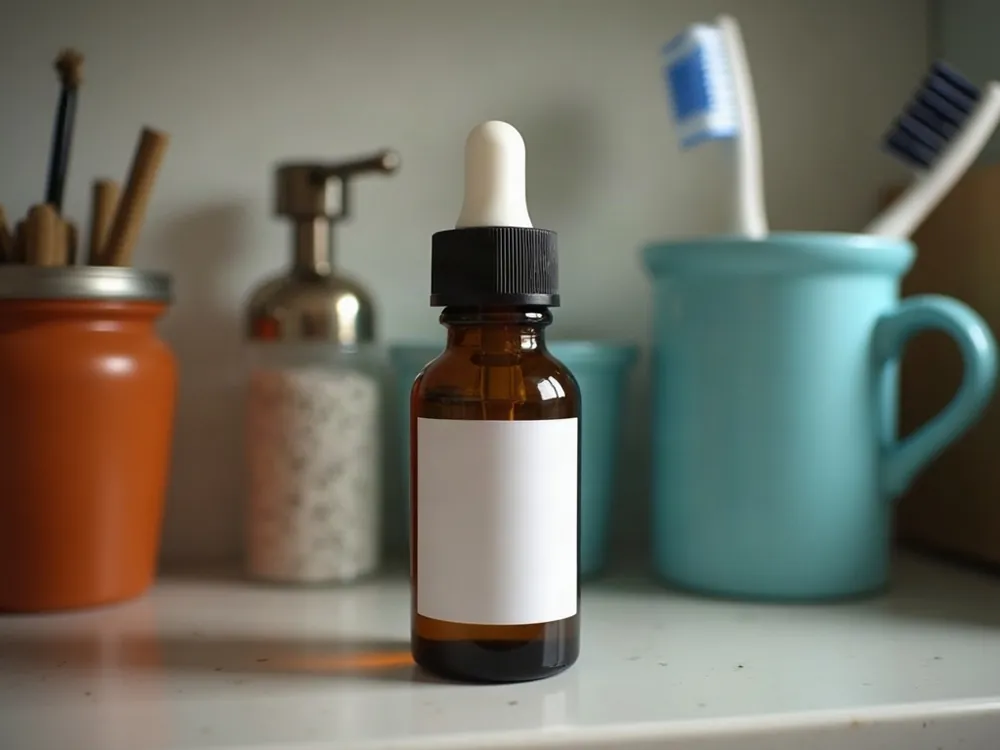
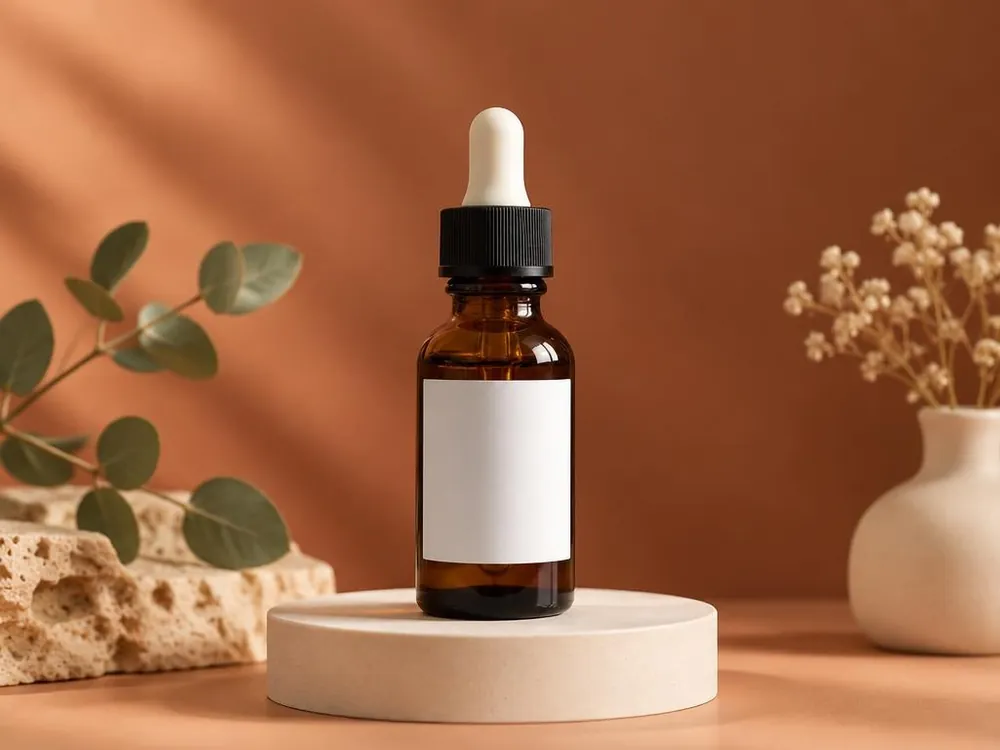
Example: a serum bottle from the source photo is placed in a studio scene. Check the label text, cap shape, packaging volume and product color before publishing.
How to prepare a listing image set
- 01
Show the product and packaging
Photograph the entire item without glare on the label. For a set, include a photograph of everything the buyer will receive.
- 02
Give each photograph a purpose
The main image explains what is for sale. A supporting scene shows use, and a close-up shows material and details. Avoid repeating the same image for every purpose.
- 03
Compare the output with the actual product
Review lettering, shape, color and included items. Reject outputs that add an accessory or change the packaging.
- 04
Prepare the appropriate file
Check current Ozon requirements for your category. To prepare 3:4, preserve the entire product with margins or choose a careful crop.
What to check before publishing
- The main image clearly identifies the product.
- Labels, color and packaging match the source.
- Props cannot be mistaken for included accessories.
- Supporting photographs show use and real details.